
Wrapping and overflow
How long formulas break into lines, and what a formula that cannot break does — scroll, shrink, clip or paint past the edge.
Display formulas wrap
Section titled “Display formulas wrap”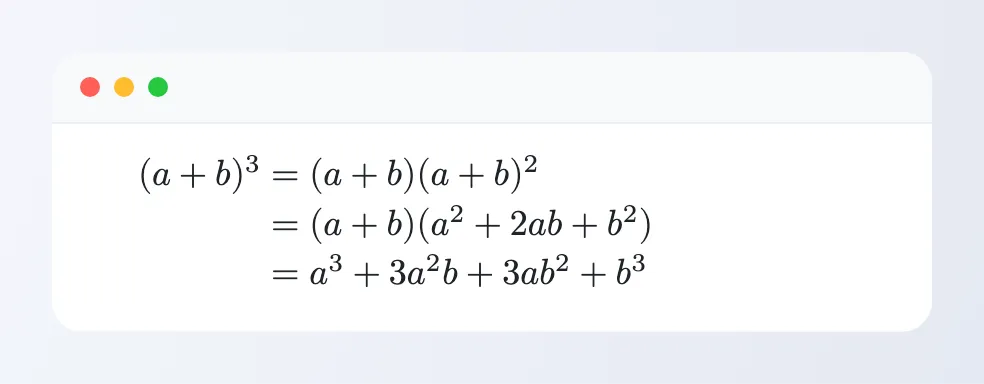
import 'package:flutter/widgets.dart';import 'package:val_latex_flutter/val_latex_flutter.dart';
/// The formula: too long for a phone's width.const formula =    r'(a+b)^3 = (a+b)(a+b)^2 = (a+b)(a^2 + 2ab + b^2) '    r'= a^3 + 3a^2 b + 3a b^2 + b^3';
/// A display formula too long for its width breaks into lines, with the/// continuation lines under the first `=`.Widget example() =>    const SizedBox(width: 300, child: Math.tex(formula, displayMode: true));
A block display formula (displayMode: true) breaks into lines that fit the
available width. In display style it breaks before relations and binary
operators, so each continuation line starts with its operator, and the
continuation lines line up under the first relation of the first line.
| Option | Default | What it does |
|---|---|---|
Math.wrap |
true for block display formulas |
Break long formulas into lines. |
LayoutOptions.lineBreaking |
LineBreaking.auto |
Where breaks may fall: auto (display style for display math, TeX’s rule for inline math), tex (after operators and relations), display (before them), or none. |
LayoutOptions.alignContinuation |
true |
Continuation lines line up under the first relation. |
LayoutOptions.continuationIndent |
2 |
Indent of continuation lines, in em, when they are not aligned. |
LayoutOptions.repeatOperator |
false |
When a line breaks before an operator, also show it at the end of the line before. |
A single symbol or box wider than the line still overflows it.
Inline formulas wrap with the text
Section titled “Inline formulas wrap with the text”An inline Math.tex does not wrap by default, and as one box it could only
break into a block of lines anyway. Inside a paragraph, use
MathText: it splits each inline formula at
its TeX break points (after binary operators and relations) and lets them
wrap with the words, choosing the paragraph’s line breaks together so no line
is left very short.
When a formula still does not fit
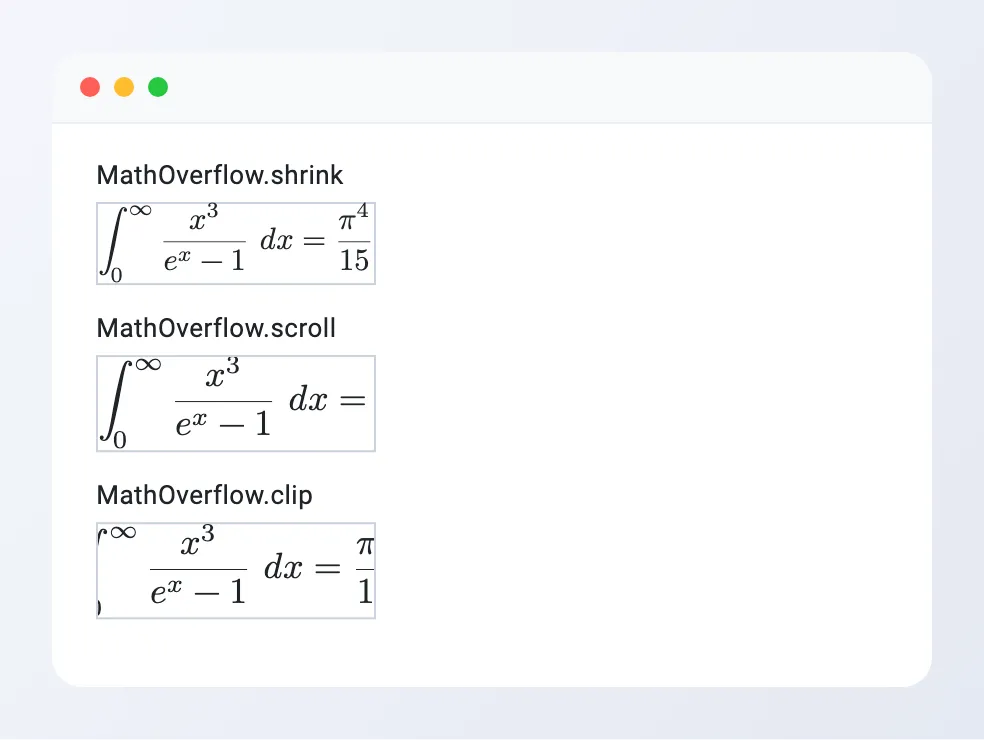
Section titled “When a formula still does not fit”overflow decides what a formula that is still too wide does — when no
break fits, or wrap is off. Block display formulas scroll by default;
other formulas paint past the edge.
import 'package:flutter/widgets.dart';import 'package:val_latex_flutter/val_latex_flutter.dart';
/// One formula that cannot break, in a box too narrow for it (outlined),/// with each overflow mode.Widget example() => Column(  crossAxisAlignment: CrossAxisAlignment.start,  children: [    for (final overflow in [      MathOverflow.shrink,      MathOverflow.scroll,      MathOverflow.clip,    ]) ...[      Text('$overflow', style: const TextStyle(fontSize: 13)),      Container(        width: 140,        margin: const EdgeInsets.only(top: 4, bottom: 12),        decoration: BoxDecoration(          border: Border.all(color: const Color(0xFFCBD2DC)),        ),        child: Math.tex(          r'\int_0^\infty \frac{x^3}{e^x - 1}\,dx = \frac{\pi^4}{15}',          displayMode: true,          wrap: false,          overflow: overflow,        ),      ),    ],  ],);
MathOverflow |
Behaviour |
|---|---|
scroll |
Scroll horizontally. The default for block display formulas. |
shrink |
Scale down to fit, but not below minShrink (0.5 by default); a formula that needs more is shown at that scale and scrolls. |
clip |
Clip at the edges. |
visible |
Paint past the edge. The default for everything else. |
Whichever mode applies, the widget reports the formula’s baseline (scaled
when shrunk), so it still lines up with text in a baseline Row.
Width in the engine
Section titled “Width in the engine”Without Flutter, LayoutOptions.maxWidth (in em) breaks a formula to a
width, and prepareFormula lays a formula out once so that layoutAt(width)
re-runs only the line breaker. See Layout.